Deploying a WordPress site via Google Cloud Platform’s (GCP) Compute Engine
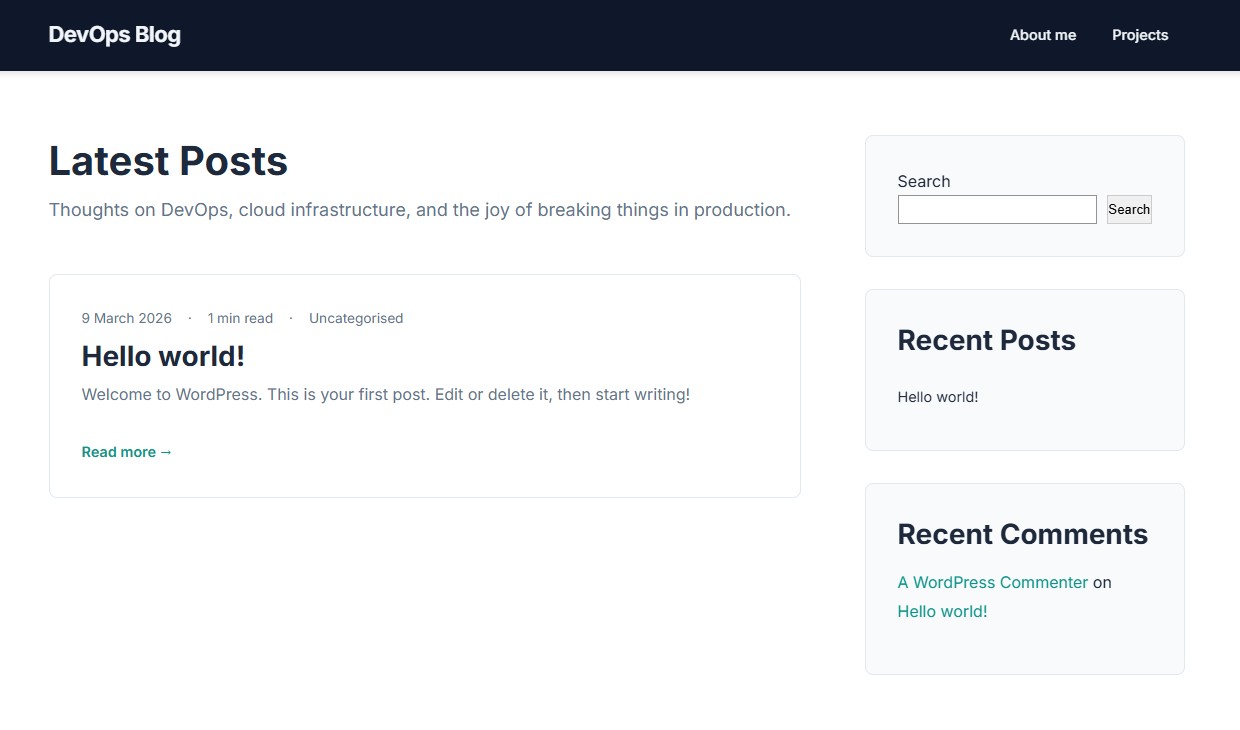
This project served as a small introduction into Google Cloud Platform (GCP) and WordPress.
Introduction
In this project, I deployed a WordPress site via Google Cloud Platform’s (GCP) Compute Engine. Prior to attempting, I had no hands-on experience with GCP or WordPress and only some introductory knowledge into Cloud Computing gained from my ongoing university studies. With my no hands-on experience and introductory knowledge, I was assisted by a friend who was knowledgable on the topics involved.
A WordPress site was chosen due to the ease-of-use in customising and updating the site which would allow me to document this and other potential future projects.
AI Disclaimer
Generative AI was used to produce the custom ‘DevOps Journal’ WordPress theme currently being used on the site. This was done to allow me to focus my time and attention on the initial use of the GCP console, the deployment of the VM instance and the installation of the LEMP stack and WordPress.
Using the GCP console for the first time
Creating a project:
The very first step that was needed in this project was to create a new project within the GCP console, every resource that is created and used in GCP needs to be housed within a project, it is essentially a top-level container for all of the different components relating to a specific project.
For my project I chose the suitable name of ‘DevOps Blog’ to help easily differentiate it from future projects and selected my already-created billing account (a billing account is necessary for creating VMs).
Enabling APIs:
With my GCP project now ready for use, I first needed to enable several APIs in order to access certain services, by default GCP services such as Compute Engine are disabled so that you only pay for what services you are actually using. The main services I needed for this project at the beginning were Compute Engine which would allow me to create VM instances and Cloud Logging which would allow me to monitor and troubleshoot the project along the way, more API services would be added further into the project.
The process of enabling these APIs was very straightforward, simply using the searchbar within the GCP console to search for the specific services or by using the API Library found within the navigation menu.
Creating a custom Virtual Private Cloud (VPC) Network
What is a VPC Network:
A Virtual Private Cloud (VPC) network is an isolated, private network that is hosted within a public cloud-provider’s infrastructure.
When a GCP project is created, a default VPC network is also automatically created, rather than simply using this default option however, I opted to create and use a custom VPC network instead. Doing so allowed me to have a greater control over the project’s network configuration such as the firewall rules and subnets used as by default, GCP uses subnets in every region which would be a bit overkill for my simple WordPress site.
Creating a VPC Network:
Navigating to the ‘VPC Networks’ product page using the console’s searchbar, I began by first deleting the default VPC and using the ‘Create VPC Network’ option.
The overall VPC was given an appropriate name of ‘devops-project’.
The two main aspects of creating my VPC involved creating a subnet and creating the firewall rules.
Creating a subnet:
A single subnet named ‘london-subnet’ was created for the europe-west2 region which correlates to London, England. An IPv4 single-stack range of 10.0.0.0/24 was used as the number of IPv4 addresses needed were only a few.
A range of 10.0.0.0/24 means that a maximum of 256 private IPv4 addresses could be used within the VPC, 10.0.0.0 is one of the Class A private networking addresses specifically designed for internal networks and the /24 indicates that the first 24-bits of the 32-bit IPv4 address identifies the network portion of the address, leaving 8-bits for the unique host portion or 256 available hosts. (GPC uses four of these to host the subnet itself.)
Creating the firewall rules:
When creating firewall rules, there are two methods of approach:
- Network tag-based filtering –
- Service account-based filtering –
To begin with, two custom firewall rules were created (a third would later be created in relation to SSL certification which will be covered later).
The first of these two rules allowed ingress (incoming) traffic using TCP (Transmission Control Protocol) on port 22, which is the well-known port number for SSH (Secure Shell). This rule meant that I could remotely and securely connect to a VM instance that was using this VPC network.